Search This Blog

20.11.12

13 HOW TO SPEED UP COMPUTER USING MOBILE PHONES AS RAM.

Do you have a Computer with less RAM size?
Does your PC hang every now and then?
Do you feel like throwing your Laptop in the waste-bin just because of its crawling state?

Well,if that's the case of your Computer,worry no more because we are about to turn all that to history.

You will quite agree with me that a computer tends to become less & less active compared to when it was first purchased.
This could be linked to several factors which cannot be listed here,but most especially when a heavy job is being done on it.

Running Computer.jpg

In this tutorial, we will be looking at some powerful devices that can be used to speed-up a computer 10 times over.
You don't have to spend some extra bucks to get these devices, as they are what we have around us.

Guess what... ,they are our Mobile phones, USB flash drives, Flash memory cards...
With the help of ReadyBoost, these devices can be used to fasten-up the speed of a 'frustratingly' slow computer.

Using ReadyBoost Application To Speed Up Computer.

Like I mentioned above,the whole idea behind using a Mobile device,Memory Card... as RAM[Random Access Memory] is made possible with ReadyBoost App. which is present in virtually all computers.

Here's How...

  1. Connect your Mobile Phone/Flash Memory card to the Computer using a USB chord or a Card reader.
  2. From the list of options that pops up on your Mobile phone,choose “MASS STORAGE”(For Blackberry users,choose USB Drive
  3. Note
    If you're using a Memory card,then you should skip the step above.
  4. Scroll to the bottom of the AutoPlay list that pops-up, and click on “Speed Up My System”.
  5. Now,the ReadyBoost window will be displayed. Just tick the option which says “Dedicate The Device To ReadyBoost”
  6. Next, check to ensure the "speed level" is at 4094MB, then Apply and finally click on OK
That's all!!! You can now feel the power of speed.
NOTE
If in any case the ReadyBoost window does not display,then it means your PHONE/SD CARD'S available memory is not up to the needed amount.

You can try getting rid of useless files from your phone / SD card until you have something like 950MB& above free.

TIPS
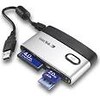
card reader.jpg
  • It's advisable you get a dedicated SD card for this purpose,so as not to lose important files.
  • Always remember to back-up your files to your system if in any case you'll be deleting some files on your Mobile phone.
  • For Laptop owners, it's recommended you use a Card-reader, because you can't always go about with your Phone connected with a USB chord.
If you need further help as regarding this tutorial,please do let us know.
Your contributions are also very valuable.THANKS...

26.8.12

52 ALL MOBILE-PHONE GAME CHEATS.

It's the belief of many that game cheats are not real, while some others believe very few of these cheats work and marvel when a cheat is being used.
Imagine beating computer 20-0 in Real Football just within 5 minutes of play(Legend mode).

So, if you are one of such people with this belief, then I'll be glad to prove you wrong.
There are over a thousand game cheats available for mobile phone users.
In order to make it easier for you, an application was developed comprising of 270+ game cheats.
Due to some lapses I found in this app., I edited it by changing some of its languages, image and added some cheats to it.

Just as a tip,I'll be giving some of the most popular game cheats here.
You can get the rest in the software.

MOBILE GAME CHEATS.

  • Real Football 2012
    IN MAIN MENU: Press 24462 to activate ML mode
    => IN CLUB MASTER/ENTER THE LEGEND MODE:
    Press 2468 to activate cheat mode and to win everything. (YOU MUST ACTIVATE ML mode at first)
    => IN THE GAME: After activating ML mode Press Right Soft Key to get a secret menu named “HAND OF GOD”
    => CPU vs CPU/Legend mode: On main menu, press */# to toggle these modes.

  • REAL FOOTBALL 2011
    1. To activate the code, in the main menu press: 24462
    2. When you playing in any match, press the "top right"options.
    3. In career mode menu, press: 2468 and you are selected for the national team.

  • REAL FOOTBALL 2010
    Enter in the main menu "24462" to open the Cheat mode.
    Enter in the ML mode, enter "2468'' to open the ML Cheat mode.

  • 2008 Real Football 3D
    In main menu, enter 0417, then during the game press the right soft key and cheat menu appears.

  • 2007 Real Football
    Cheat Mode -> In the menu, type 0417, then during gameplay, press the right soft button.

  • Asphalt 3: Street Rules 3D
    Open All -> #13791
    Pass a Race -> #13792

  • Asphalt 3: Street Rules
    Show all -In the menu,type 21683.
    Lose the race - in the game press 1
    Win the race - in the game press 3.

  • 2006 Real Football
    Cheat Mode -> In the menu, type 0417, then during the game, press *

  • Hero of Sparta
    In main menu, press *1379
    Press 5 or OK to activate the options, press 2x 5 or OK for deactivate.

  • Ferrari GT: Evolution
    1. To Activate Cheat Mode & Unlock All
    Type #1379* in the Main Menu
    2. To Win a Race In 1st Place:type #1379*
    during game.
    3. For Light Version
    Press 21683 in the Menu.

  • PRINCE OF PERSIA CLASSIC
    In the main menu,press 3331

  • XIII COVERT IDENTITY
    Press *1379#99 to unlock all and press *1379# in shop.

  • Guitar Rock Tour 2
    In main menu, press 1973* Enable Cheats
For the rest of the cheats,DOWNLOAD THE APPLICATION HERE[172kb]
Don't forget to share with your Friends!!!.
Thanks.

6.8.12

18 HOW TO PLAY NINTENDO(.nes) GAMES ON A JAVA PHONE.

In my previous post,I wrote on “how to play nintendo,gameboy...games on mobile phones”.

In that post,the softwares available were for symbian phones and like I mentioned in one of my other posts[how to take screenshots on java phones],java users shouldn't be left out of the fun.

Today,I'll be giving an emulator which works on all java enabled phones ->NESCUBE!!!.

With this emulator,you can play all nintendo games without stress anytime & everywhere.

How to play games with nescube.

To begin with this tutorial,download the software here.[in .jar format.] Once you've downloaded the emulator,launch it & you'll see a box rolling with a text asking you to press any number.

Next,a page will open with four options i.e

  • Open game
  • Settings
  • About &
  • Help
Click on Open game & three other options will be displayed.

Next, click on the directory your nes game is located,i.e either C:/ or E:/ and then continue until you locate the folder containing the nintendo game.

Once you locate it,just click on it & the game will automatically start. If you are not satisfied with the sound,keys or color mixture,you can always do that from the software's settings. Once again,download nescube here.

Don't have a nes game on your mobile?

In case you don't have a .nes game on your mobile phone,you can download it from» www.coolrom.com or just search for “nes games” on any of your favorite search engines.

When you are through with the game's download,it will be in .zip format. Unzip it[Learn how to unzip files] and follow the instructions above to play it.

That's all.Now you know how to play nintendo games both on java and symbian phones☺

27.7.12

4 HOW TO CHANGE JAVA APPLICATION ICONS WITH MOBILE PHONES.

Have you ever wondered how some people tend to change application icons? Have you ever wished to change the icon of your favorite applications to your personal image?

In this post,I'll be directing you on how to change all Java application icons using a Java/Symbian phone.

Before we begin with this tutorial,you should have these softwares ready on your mobile phone.
  1. BlueFTP/Minicommander
  2. Raw application file

HOW TO CHANGE APPLICATION ICON USING A JAVA PHONE.

Once you have gotten the necessary files,we are set to begin. NOTE»Raw file means the _JAR/.ZIP format of the application to edit.

Using BlueFTP... To make your work faster,locate the downloaded BlueFTP in your phone » App. Access,then change everything to “Ask First Time”. Now,follow these steps strictly so as not to get an error.

  1. Open/Launch BlueFTP and locate the Raw application file you downloaded.
  2. Rename the application from _JAR to .ZIP,but if it's already zipped,skip this step.
  3. Press menu(Left soft key) and scroll down to Create folder.Give it any name but it's advisable to use a name you can easily remember.
  4. Open the application in .zip format. Next,press menu again & click on “select all”.
  5. Now,press 1(to copy the selected items) » Go to the folder you created,open it and press 3(to paste the copied files).
  6. Next,locate your image and press 1
  7. Go back to the folder you created and press 3 to paste your image there.
  8. Locate the application's default icon in the folder[usually named i.png/icon.png] and write down the name.
  9. Delete the original icon and rename the image you pasted to the folder with the name you wrote down(It doesn't matter what format your image is).
  10. Once you are done with that,it's time to re-pack the modified app. Press menu and click on “select all”.
  11. Select menu again and choose compress items(zip).A screen will pop-up asking you to name the zip file,you can choose to leave it as File.zip.
  12. Finally,after locating the newly zipped file,rename it from File.zip to File_jar.
  13. Now,exit the BlueFTP & locate your file,i.e File_jar and rename it to File.jar.
THAT'S ALL FOR BLUEFTP!!!

Minicommander to me,is the best file manager.That's why I've taken my time give this alternative process for those who do not fancy BlueFTP. To do this with Minicommander,follow the steps below.
  1. Locate the application on your phone and change the app. Access with the steps I mentioned for BlueFTP above.
  2. Launch M.C(MINICOMMANDER) and locate the application in .zip format.Likewise,open your folder in the second segment/column of the software.
  3. Once you open the .zip application,press *(to select all) » 5(to paste the selected files into the folder).
  4. Now,when prompted to select [yes],just press the left soft key.
  5. Go back to gallery and locate the image you want to use as icon.
  6. Press the left-soft-key to jump to the second column and locate the original icon(usually i.png/icon.png) &write the name somewhere.
  7. Press 8(to delete the icon) and toggle back to the first column.Now,press 5 on the image you want to use and confirm it.
  8. Once you've copied the image to the created folder,toggle to the second column and rename the image with the name you wrote down previously by holding "6".
  9. Next,to re-pack the files press * » Right-soft-key » 1 » 2.
  10. You will then see the root of the file.Select OK and rename the newly zipped file from .zip to _jar.
  11. Lastly,locate the file in your phone(without using a software) and rename it from _jar to .jar.
THAT'S ALL!!!.With this,you can change the icon of any java game/application as you please.

You can choose to use whichever software you feel will be easier for you.

If you don't get any of these steps or you have a comment/suggestion to give,do not hesitate to leave your comments behind.

NEXT» ¤HOME¤

 
[GET THIS]