


 16.9.12
 Da_Soljar

In our previous post,we discussed on “How to Add Animated Follow-us widget to blogger”.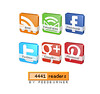
So likewise,in this tutorial we will be dealing with how to add animated social bookmarking widget with 3D effect.
This widget is so cool that when hovered on,spins 360 degrees and spins back when released.
To add the widget on your blog,just follow the instructions below.
Login to Blogger,then go to Design » Page element and select 'Add a gadget'.
Now,locate "HTML/JAVASCRIPT" and select ADD.
Just copy/paste the code below and save the widget.
<style>
#social a:hover{background-color:transparent;opacity:0.7;}
#social img {-moz-transition: all 0.8s ease-in-out; -webkit-transition: all 0.8s ease-in-out; -o-transition: all 0.8s ease-in-out; -ms-transition:all 0.8s ease-in-out; transition: all 0.8s ease-in-out;}
#social img:hover { -moz-transform:rotate(360deg); -webkit-transform:rotate(360deg); -o-transform:rotate(360deg); -ms-transform:rotate(360deg); transform:rotate(360deg);}</style>
<center>
<div id="social">
<!--Start Rss Icon--> <a title="Grab Our Rss Feed" href="YOUR FEED URL HERE" target="_blank"><img border="0" src="https://blogger.googleusercontent.com/img/b/R29vZ2xl/AVvXsEgIeRwrqwuAqvcUlwOwBBPYsSwYp_gHalossIBr5iagaK30uLcU9OdQe2cvNlf_3CHy9N_tlUXxFty0PdyLurPaDz-b61JKynG2M1aDI3ycG5sRFikvhfyYBRbSVAbzkWCbhjkS_oDa99zq/s1600/RSS-48x48.png" style="margin-right:1px;" alt="Icon"/></a>
<!--End RssIcon-->
<!--Start Email Rss Icon-->
<a rel="nofollow" title="Get Free Updates Via Email" href="YOUR EMAIL RSS URL HERE" target="_blank"><img border="0" src="https://blogger.googleusercontent.com/img/b/R29vZ2xl/AVvXsEhKC-yW01-1uo6VQlHHA162gbzntUdytr-CVfz0WJ63cBvIBVlh6sdyFkXE-hp6rumqHWmyqjY-i1CNCeMSRJIMbLl_DtTH-Dkd8cYcHx8Tahir0AUlSqZxGAGacuH6ElvUrzo8ZwNLmkbd/s1600/RSS-EMAIL-48x48.png" style="margin-right:1px;" alt="Icon"/></a>
<!--End Email Rss Icon-->
<!--Start Facebook Icon-->
<a rel="nofollow" title="Like Our Facebook Page" href="YOUR FACEBOOK PAGE URL HERE" target="_blank"><img border="0" src="https://blogger.googleusercontent.com/img/b/R29vZ2xl/AVvXsEj4M97PcF8xNpiPBPVb-Z_IUEVWHPLXFdMYFRkaathLgvNQdQ8eobpfsfpjRS-4nl8i-WmyRlMh7mXI2X-xdj7sNz1T0pkNIB3hsBwGKYWVsUFot3I3mJiY0rQqR8lLaY2_9G41kEwKYdTe/s1600/FACEBOOK-48x48.png" style="margin-right:1px;" alt="Icon"/></a>
<!--End Facebook Icon-->
<!--Start Twitter Icon-->
<a rel="nofollow" title="Follow Our Updates On Twitter" href="YOUR TWITTER URL HERE" target="_blank"><img border="0" src="https://blogger.googleusercontent.com/img/b/R29vZ2xl/AVvXsEir0aVbHXHydX2402mJnzrAEumNIHNHqwDw5IXFpVSL0Pl8O255f0PJ_RQltFYfvIxuocSSpBPlqGGvtyp1267KCn4hEHPXR5pZGlkskyQK1cRrwz0SPbIO2_HlCoQfrmEAe5lqhtWBURAx/s1600/TWITTER-48x48.png" style="margin-right:1px;" alt="Icon"/></a>
<!--End Twitter Icon-->
<!--Start Google Icon--> <a title="Follow Us On Google " rel="nofollow" href="YOUR GOOGLE PLUS URL HERE" target="_blank"><img style="margin-right:1px;" src="https://blogger.googleusercontent.com/img/b/R29vZ2xl/AVvXsEjgGSZLpT5k_J6AHfesUJWnmuVZbnMVN2BxQjEFK2Tu8jZMr-8U8oPWQuPIxe53xSYbUGfD015KO2l8tSkhefy33JPijF5l6SKHuyeBc_SyfzoiFy18KnioUYcBm_6PSTH_q44hRjhVUzSs/s1600/GOOGLE-PLUS-48x48.png"/></a>
<!--End Google Icon-->
<!--Start Pinterest Icon-->
<a title="Follow Our Pins" rel="nofollow" href="YOUR PINTEREST URL HERE" target="_blank"><img style="margin-right:1px;" src="https://blogger.googleusercontent.com/img/b/R29vZ2xl/AVvXsEhQXPpMuezF38H6B7pr3J9ElPTkKinCrvBjmoEMY1muNG6DfYS4QjR7EypB90RHP9sQaFUeVH9zRzwsMIzdixNTXguvySbPa-qjNYZ6dzaENmT8KJ99zReAFWdC2qGBzfFYx3W3fabbXO7V/s1600/PINTEREST-48x48.png" alt="Follow Me on Pinterest" /></a>
<!--EndPinterest Icon--></div>
<!--Start Feed Count Button--> <a href="FEEDBURNER URL HERE" target="_blank"><img alt="Feedburner" src="http://feeds.feedburner.com/~fc/spiceupyourblog?bg=ff9933&fg=000000&anim=1" style="border:0" /></a>
<!--End Feed Count Button--> </center>
#social a:hover{background-color:transparent;opacity:0.7;}
#social img {-moz-transition: all 0.8s ease-in-out; -webkit-transition: all 0.8s ease-in-out; -o-transition: all 0.8s ease-in-out; -ms-transition:all 0.8s ease-in-out; transition: all 0.8s ease-in-out;}
#social img:hover { -moz-transform:rotate(360deg); -webkit-transform:rotate(360deg); -o-transform:rotate(360deg); -ms-transform:rotate(360deg); transform:rotate(360deg);}</style>
<center>
<div id="social">
<!--Start Rss Icon--> <a title="Grab Our Rss Feed" href="YOUR FEED URL HERE" target="_blank"><img border="0" src="https://blogger.googleusercontent.com/img/b/R29vZ2xl/AVvXsEgIeRwrqwuAqvcUlwOwBBPYsSwYp_gHalossIBr5iagaK30uLcU9OdQe2cvNlf_3CHy9N_tlUXxFty0PdyLurPaDz-b61JKynG2M1aDI3ycG5sRFikvhfyYBRbSVAbzkWCbhjkS_oDa99zq/s1600/RSS-48x48.png" style="margin-right:1px;" alt="Icon"/></a>
<!--End RssIcon-->
<!--Start Email Rss Icon-->
<a rel="nofollow" title="Get Free Updates Via Email" href="YOUR EMAIL RSS URL HERE" target="_blank"><img border="0" src="https://blogger.googleusercontent.com/img/b/R29vZ2xl/AVvXsEhKC-yW01-1uo6VQlHHA162gbzntUdytr-CVfz0WJ63cBvIBVlh6sdyFkXE-hp6rumqHWmyqjY-i1CNCeMSRJIMbLl_DtTH-Dkd8cYcHx8Tahir0AUlSqZxGAGacuH6ElvUrzo8ZwNLmkbd/s1600/RSS-EMAIL-48x48.png" style="margin-right:1px;" alt="Icon"/></a>
<!--End Email Rss Icon-->
<!--Start Facebook Icon-->
<a rel="nofollow" title="Like Our Facebook Page" href="YOUR FACEBOOK PAGE URL HERE" target="_blank"><img border="0" src="https://blogger.googleusercontent.com/img/b/R29vZ2xl/AVvXsEj4M97PcF8xNpiPBPVb-Z_IUEVWHPLXFdMYFRkaathLgvNQdQ8eobpfsfpjRS-4nl8i-WmyRlMh7mXI2X-xdj7sNz1T0pkNIB3hsBwGKYWVsUFot3I3mJiY0rQqR8lLaY2_9G41kEwKYdTe/s1600/FACEBOOK-48x48.png" style="margin-right:1px;" alt="Icon"/></a>
<!--End Facebook Icon-->
<!--Start Twitter Icon-->
<a rel="nofollow" title="Follow Our Updates On Twitter" href="YOUR TWITTER URL HERE" target="_blank"><img border="0" src="https://blogger.googleusercontent.com/img/b/R29vZ2xl/AVvXsEir0aVbHXHydX2402mJnzrAEumNIHNHqwDw5IXFpVSL0Pl8O255f0PJ_RQltFYfvIxuocSSpBPlqGGvtyp1267KCn4hEHPXR5pZGlkskyQK1cRrwz0SPbIO2_HlCoQfrmEAe5lqhtWBURAx/s1600/TWITTER-48x48.png" style="margin-right:1px;" alt="Icon"/></a>
<!--End Twitter Icon-->
<!--Start Google Icon--> <a title="Follow Us On Google " rel="nofollow" href="YOUR GOOGLE PLUS URL HERE" target="_blank"><img style="margin-right:1px;" src="https://blogger.googleusercontent.com/img/b/R29vZ2xl/AVvXsEjgGSZLpT5k_J6AHfesUJWnmuVZbnMVN2BxQjEFK2Tu8jZMr-8U8oPWQuPIxe53xSYbUGfD015KO2l8tSkhefy33JPijF5l6SKHuyeBc_SyfzoiFy18KnioUYcBm_6PSTH_q44hRjhVUzSs/s1600/GOOGLE-PLUS-48x48.png"/></a>
<!--End Google Icon-->
<!--Start Pinterest Icon-->
<a title="Follow Our Pins" rel="nofollow" href="YOUR PINTEREST URL HERE" target="_blank"><img style="margin-right:1px;" src="https://blogger.googleusercontent.com/img/b/R29vZ2xl/AVvXsEhQXPpMuezF38H6B7pr3J9ElPTkKinCrvBjmoEMY1muNG6DfYS4QjR7EypB90RHP9sQaFUeVH9zRzwsMIzdixNTXguvySbPa-qjNYZ6dzaENmT8KJ99zReAFWdC2qGBzfFYx3W3fabbXO7V/s1600/PINTEREST-48x48.png" alt="Follow Me on Pinterest" /></a>
<!--EndPinterest Icon--></div>
<!--Start Feed Count Button--> <a href="FEEDBURNER URL HERE" target="_blank"><img alt="Feedburner" src="http://feeds.feedburner.com/~fc/spiceupyourblog?bg=ff9933&fg=000000&anim=1" style="border:0" /></a>
<!--End Feed Count Button--> </center>
NOTE
If you don't have any of these urls,you can simply remove it for the time being.
Just delete all codes from where you see 'START' to the 'END' part.


