Search This Blog

18.10.12

2 HOW TO AUTOMATICALLY DELETE GOOGLE CHROME BROWSER HISTORY.

Privacy is one thing every human being loves to have.
Browsing the net on a shared computer becomes a risk when it comes to securing secretive/personal informations.

Sometimes,we may even forget to log-out of an account before exiting the browser,thereby making such account-infos vulnerable to easy access by anyone.

To guard against this,some precautions needs to be taken to ensure that these informations do not leak in the slightest.

In this tutorial,I will be giving you the trick I use in clearing all my browser history and cache automatically upon exiting.
Even as a Cyber-Café owner,the privacy of your patronizers should be of utmost importance to you,so this tutorial should come handy.

Google chrome.jpg

Automatically Delete Google Chrome Browser History.

So,if you use Google chrome browser on your Pc,all you need do is follow these simple steps…
    STEP 1
  1. Launch Google chrome.
  2. Click on the wrench menu to select settings.
  3. From the Settings tab,click on “Advanced settings” and navigate to “Privacy settings”.
  4. Click on the “Content settings” button and check/tick the box which states “Clear Cookies and Other Site and Plugin Data When I Close My Browser”
  5. Once done,you can try it out to see all your privacy datas and browser history deleted each time you exit the browser.

STEP 2

Note,this step is not compulsory,but you might want to consider retaining a specific site's history i.e Each time you visit a specified site,all history regarding that site is not automatically deleted when exiting the browser.

To do this,follow the steps below »

  1. Click on the “Manage exceptions” button which is located below the “Cookies settings”.
  2. Include the URL of the site you want to keep in the exceptions box.
That's all.Now,everytime you exit the browser,the entire cookies,cache and history of all sites which are not included in the exceptions list will be deleted. automatically.

16.10.12

0 HOW TO COPY DATA FROM SCRATCHED CDs & DVDs.

Have you ever come across the error “Data not readable” while trying to recover/copy a data from your aged or scratched CDs and DVDs?
Have you ever wished you could get those important files back?,then worry no more…

This problem often surface when you are trying to use a scratched disk/a disk which has not been used for a very long time,thereby making the datas contained in it lost forever.

But,here comes the good news.
There is this Computer software I discovered which is powerful enough to help copy those datas which are embedded in such a disk.
It's called “COPYCAT”

Just as the name implies,this software copies all those datas from the disk directly into your system.

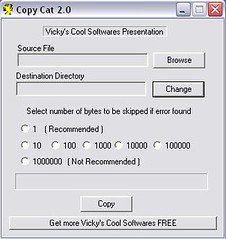
CopyCat.

CopyCat is a software developed by VCSoftware.
It helps to copy-out maximum bytes from a disk which an ordinary Windows copying cannot handle.CopyCat Screenshot.jpg

It skips totally-unreadable-bytes and extracts all datas which are still readable to the system for future referencing.

Features Of CopyCat.

  • It copies maximum data from unreadable Hard disks,Pen drive, Floppy drive, and other media drives.
  • It gives the option to skip bad area when found unlike Windows Copy operation which halts.
  • It copies data from highly damaged media ~ byte by byte.

TIP
From the image above,you will notice a command stating »
“Select number of bytes to be skipped if error found.”
Just choose 1 which is the Recommended value.

To get CopyCat on your PC,|FOLLOW THIS LINK.|

THAT'S IT.
Please leave your comments and reviews behind.

14.10.12

0 HOW TO USE AN ANDROID PHONE'S CAMERA AS WEBCAM.

Android Phones over the years,has really developed to an astonishing level with new features being added to every new model.
This has made the device handy in so many occasions.

In one of our recent tutorials,a tip was given on “How an Android phone can be used to connect a computer to the internet.”.

So in this Tutorial,we'll be learning another great tip of the Android Mobile.

webcam.jpg

Do you have a Computer without webcam?,
Do you have an Android Phone?
,then you need not buy a separate Cam again,because you can easily turn your device into a Webcam to chat with your friends on Facebook,Skype,GTalk etc.

All you need do is follow these simple instructions...

How To Turn An Android Phone Into Webcam.

Android logo.jpgFor the benefit of this tutorial,we'll be making use of an application called “SMARTCAM” which supports both Bluetooth and WIFI connection.
Here are the download links
SMARTCAM for ANDROID.
and
SMARTCAM FOR COMPUTER[Windows & Linux supported]

Get both Softwares for the respective devices and let's proceed...

Using Wifi Connection.

  1. Establish a connection between the Android phone and Computer.To do this,
    • Launch SmartCam on mobile.
    • Navigate to Menu » Settings » TCP/IP (Wifi) and input the Local IP address of your computer.
  2. Launch SmartCam on PC and set connection type in the SETTINGS to TCP/IP (Wifi).
  3. Turn-on Wifi on your Android phone and connect your phone to the network your Pc is connected to.
  4. Finally,select “Connect Wifi” from the Android application's menu.

If done properly,you should see an image of your phone on your desktop.

THAT'S ALL.

NOTE »
To chat using this application,in to your Chat application's preferences/settings and select “SmartCam” in video settings.

Is it Tricky?
Do you have a question or contribution to make?
Please let us know by leaving your comments behind.

0 HOW TO CHAT WITH FACEBOOK FRIENDS ON OPERAMINI.

Chatting on facebook with Mobile Phone has never been easier.
Facebook-mobile Logo.jpg
With the introduction of Facebook's Buddylist,you can easily get in touch with your pals without going through a whole lot of stress.

In this tutorial,I'll be giving you a quick tip on how you can chat with your Facebook buddys using Opera-mini.

All you need do is Copy-Paste the URL address below into your Opera's address bar to see your online friends live.

Here's The Link...
https://touch.facebook.com/buddylist.php

Note,this doesn't work on other browsers such as UCbrowser,QQbrowser etc
Only OperaMini[Any version.]

If you require any further information,please do let us know by leaving a comment behind.

12.10.12

0 HOW TO CONNECT A COMPUTER TO THE INTERNET USING AN ANDROID PHONE.

It's no longer a story that you can connect a computer to the internet via Mobile Phones,but “HOW” remains the question.
connect phone to computer.jpg

So,do you have a Computer & an Android Phone?, here's a quick one on how you can do just that.

Steps To Connect Pc With Internet.

  1. Connect your Android Mobile to the internet with your inbuilt browser (Wifi/Packet data).
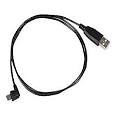
  2. Connect Phone to Computer using a cable.
  3. usb cable.jpg
  4. Select Wireless & Networkfrom your Android phone's settings.
  5. Next,select Tethering and Portable hotspot.
  6. Finally,Check USB tethering & Portable Wi-Fi hotspot.
That's all.
You can now open your Computer's browser to browse the internet.
«PREVIOUS NEXT» ¤HOME¤

 
[GET THIS]